Using Kiosque Mode for self-administered surveys
Kiosque Mode allows you to handle self-administered surveys on AskiaFace, using Android and iOS devices. It is available in AskiaFace version 3.2.0 onwards.
Setting up Kiosque Mode
Connection settings
To set up Kiosque Mode, you first need to set the connection settings in an existing connection. You can find these settings at them at the bottom of the AskiaField connection settings screen. To open the settings, tap the settings icon in the sidebar:

The connection settings appear as follows:
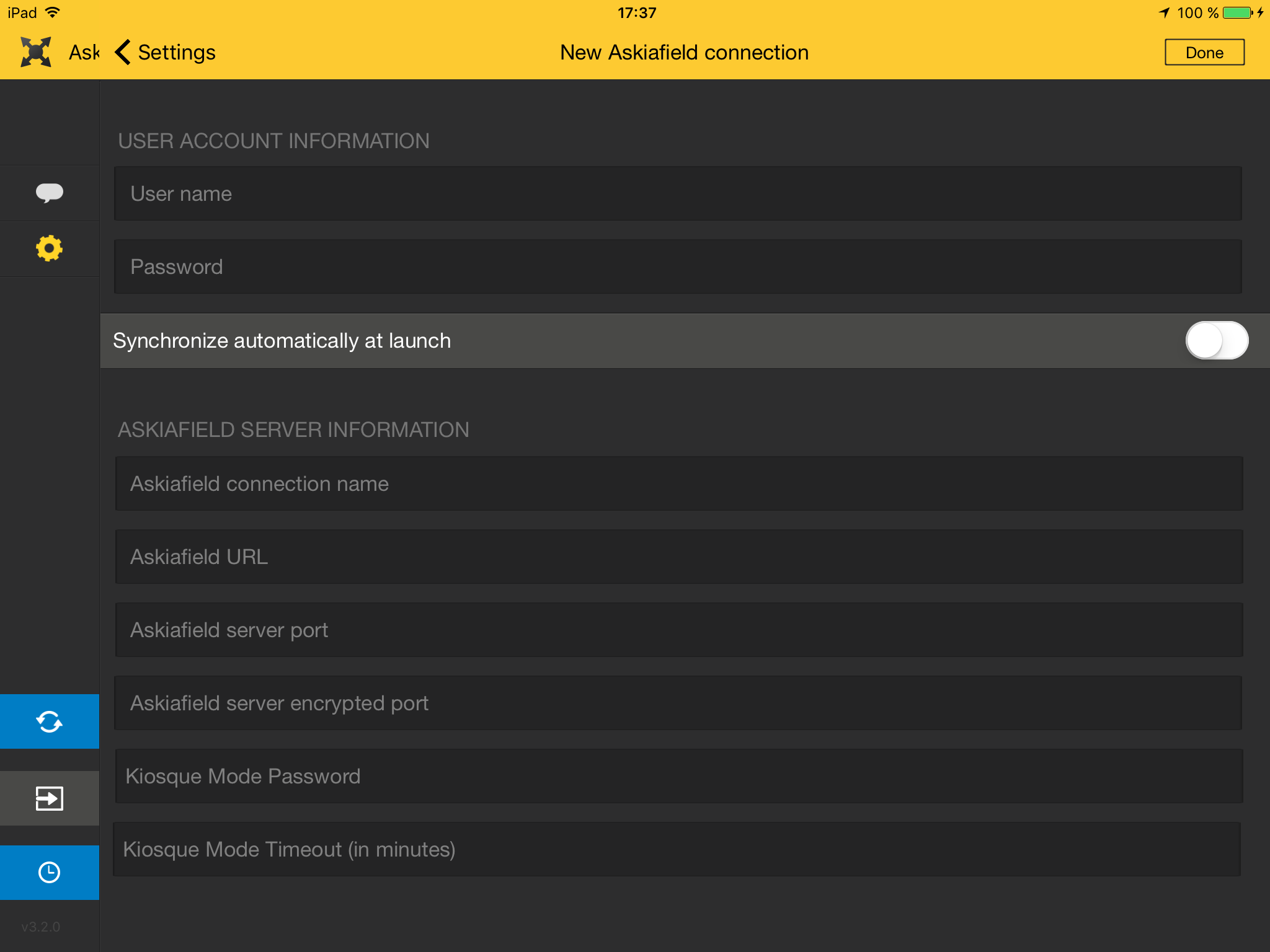
Enter the settings as follows:
- Kiosque Mode Password: enter the password your administrator has set up for Kiosque Mode. This must be entered on the device in order to exit Kiosque Mode (and therefore access the other functions of AskiaFace).
- Kiosque Mode Timeout (in minutes): enter the timeout for refreshing a new interview. Note that if your survey is using multimedia files (video or audio), you will need to set the timeout to be greater than the duration of your longest multimedia file. For example, if your video lasts for three minutes, then set the timeout to four minutes.
Setting autosync
In the main interface, on the left sidebar, you will find the autosync option, which allows you to set a time of the day to synchronize interviews and get survey updates.
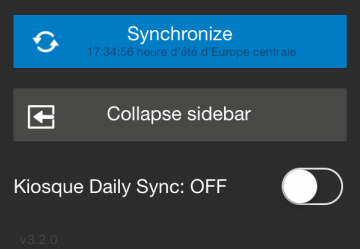
When activating it, you will be prompted to specify the time of the day when the daily synchronization must happen:
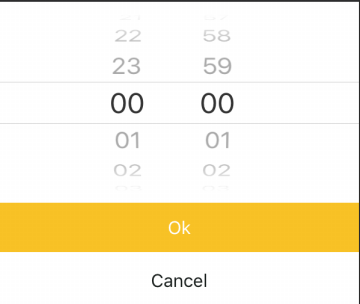
Once this is done, you need to activate the Kiosque Daily Sync by pressing the Clock icon or set Kiosque Daily Sync to "on" (depending on whether the toolbar is expanded or not). At each synchronization, the device will send interviews to Askia CCA and get any relevant survey updates.
For information on running Kiosque Mode interviews, see conducting Kiosque interviews.